Are you wondering if you can play Fortnite on your computer and how to get started? Many busy gamers, balancing work and family, want to dive into the action-packed world of Fortnite but aren't sure about the PC requirements, installation process, or how to optimize performance for a smooth experience. This comprehensive guide answers all your pressing questions, offering practical tips for setting up Fortnite on your desktop or laptop, whether you're a seasoned player looking for performance tweaks or a newcomer eager to join friends. We'll cover everything from minimum specs to advanced settings, cross-play capabilities, and even troubleshooting common issues, ensuring you can enjoy the game without hassle. Discover how to enhance your gameplay, connect with the massive social community, and make the most of your limited gaming time. Learn about free-to-play options, budget-friendly upgrades, and strategies for balancing your digital adventures with real-life commitments, all while staying current with the latest game trends. This resource is designed for the modern gamer who values relaxation, skill-building, and social fun without the hype.
Related gamesQ: Can I play Fortnite on my laptop, and what are the crucial laptop-specific considerations?
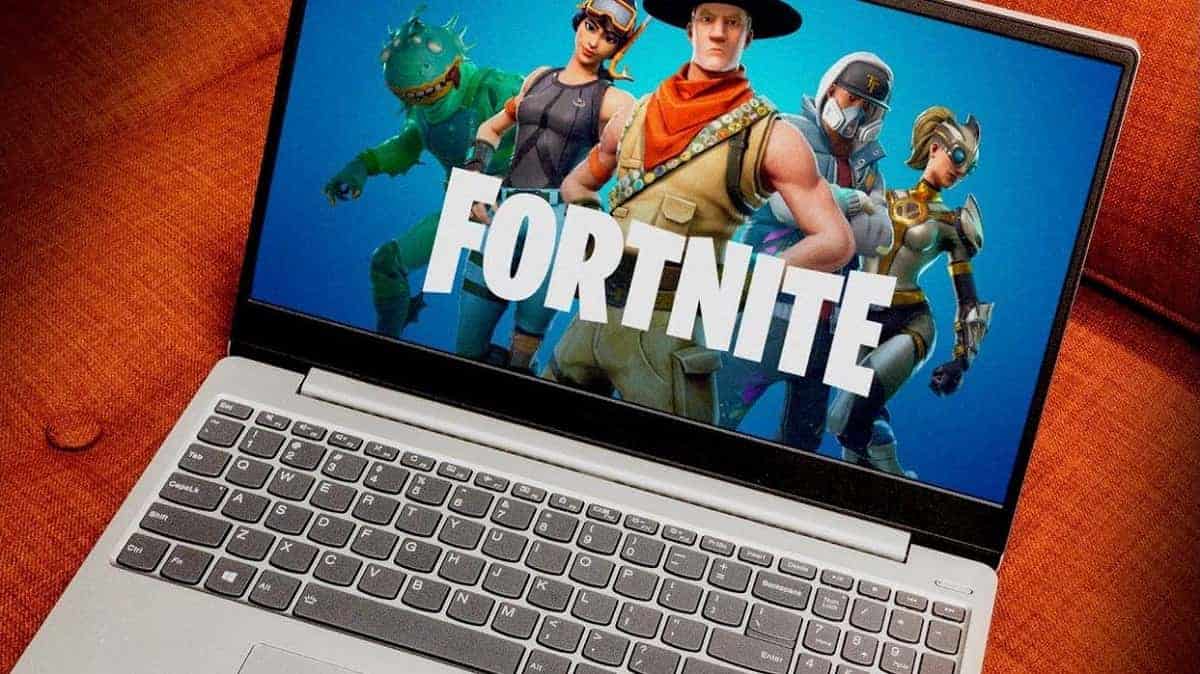
A: Yes, you can absolutely play Fortnite on most modern laptops, provided they meet the game's minimum system requirements. Crucial considerations for laptops include ensuring adequate cooling, as laptops can easily overheat during intensive gaming sessions, which leads to performance throttling. Keeping drivers updated, using a laptop cooler, and prioritizing Performance Mode in-game are key tips. Also, be mindful of battery life; always play plugged in for optimal performance.
Q: What are the absolute minimum PC specifications needed to run Fortnite in 2026?
A: To merely run Fortnite in 2026, your PC should ideally have at least an Intel Core i3-3225 3.3 GHz or equivalent, 8 GB of RAM, and an integrated graphics card like Intel HD 4000. While these specs will get the game to launch, you'll need to use the lowest settings and likely Epic's Performance Mode (Alpha) for a playable frame rate, especially in busy combat scenarios. Upgrading RAM to 16GB is often the most impactful budget boost.
Q: How do I download and install Fortnite on my computer for free?
A: Downloading and installing Fortnite on your PC is completely free and straightforward. First, visit the official Epic Games website (epicgames.com) and download the Epic Games Launcher. Install the launcher, then create a free Epic Games account or log in if you have one. From the launcher's store section, search for Fortnite and click "Get" or "Install" to begin the download. Once installed, you can launch the game and play without any upfront cost.
Q: Is Fortnite cross-platform, allowing PC players to team up with console or mobile friends?
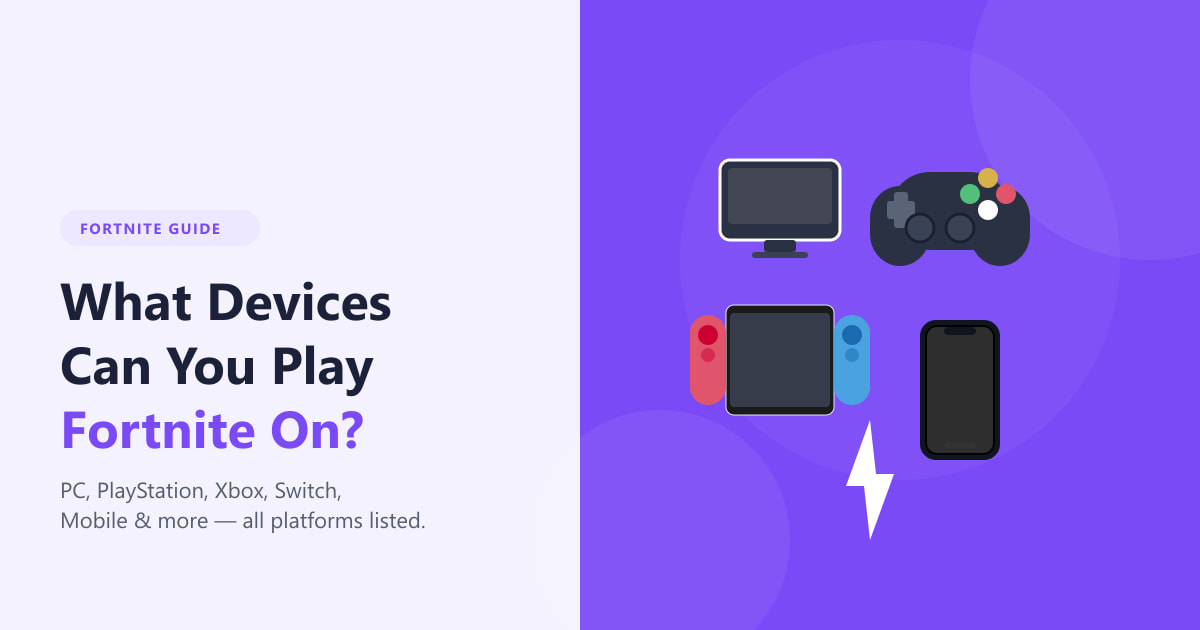
A: Yes, Fortnite is famously cross-platform, enabling PC players to seamlessly team up and play with friends on PlayStation, Xbox, Nintendo Switch, and mobile devices (where supported). This universal connectivity is a major reason for its widespread appeal among social gamers. Your Epic Games account links all your progress and friends across different platforms, making it easy to jump into a squad regardless of everyone's chosen hardware.
Q: Why is Fortnite lagging or performing poorly on my powerful gaming PC, and how can I fix it?
A: Even powerful PCs can experience lag due to various factors. Common culprits include outdated graphics drivers, overheating components (CPU/GPU), conflicting background applications, or inefficient in-game settings. To fix this, ensure your graphics drivers are updated, close unnecessary background apps, monitor your system temperatures, and adjust Fortnite's settings, prioritizing Fullscreen mode, lowering shadows/effects, and trying Performance Mode (Alpha) for stability. Sometimes, verifying game files in the Epic Games Launcher can also resolve corrupted data issues.
Q: What's the best way to optimize Fortnite settings for competitive play on a mid-range PC?
A: For competitive play on a mid-range PC, prioritize frame rate over visual fidelity. Set your game to Fullscreen mode, enable Performance Mode (Alpha) under the Rendering Mode, and set most visual options (Shadows, Anti-Aliasing, Effects, Post Processing) to "Off" or "Low." Keep View Distance at "Medium" or "Far" and Textures at "Medium" or "High" if your VRAM allows. Disable Vsync and Motion Blur for minimal input lag. These settings maximize frames and responsiveness.
Q: Can I use a game controller (like Xbox or PlayStation) to play Fortnite on my PC instead of keyboard and mouse?
A: Absolutely! Fortnite offers excellent controller support on PC. You can connect Xbox controllers (via USB, Xbox Wireless Adapter, or Bluetooth) or PlayStation controllers (DualShock 4/DualSense via USB or Bluetooth) and the game will automatically detect and allow you to play. Many players prefer controllers for a more relaxed experience or if they're used to console gaming. The game seamlessly switches between keyboard/mouse and controller input.
Can You Really Play Fortnite on Your Computer? A Comprehensive Guide for Busy Gamers
Life can be a whirlwind, can't it? Between work deadlines, family commitments, and just trying to keep your head above water, finding time for your passion can feel like another mission. If you're like many US gamers, averaging over 10 hours a week in digital worlds, you crave that escape—that chance to unwind, connect with friends, or simply sharpen your skills after a long day. You've heard the buzz about Fortnite, seen the vibrant streams, and maybe even had friends ask you to join. But then the question hits: "Can you play Fortnite on computer?" And if so, how do you even begin to fit another game into your already packed schedule without the headaches of complex setups or performance issues?
You're not alone in these thoughts. Many adult gamers, often balancing a job and family, want a seamless, fun experience, not a technical deep dive. The good news is, yes, playing Fortnite on your computer is not only possible but it's often the preferred way for many due to enhanced controls, graphics, and competitive edge. This guide is built specifically for you—the gamer who values their time, wants clear answers, and seeks practical solutions. We'll demystify the process, from checking system requirements and installation to optimizing performance and even integrating gaming into your busy life. No hype, just honest, actionable advice to get you dropping into the battle bus with confidence.
Can You Really Play Fortnite on Your Computer?
Absolutely, playing Fortnite on a computer is not only entirely possible but also incredibly popular among the 87% of US gamers who regularly engage with their favorite titles. Fortnite, developed by Epic Games, was designed from the ground up to be a multi-platform experience, with PC being one of its primary homes. This means you can enjoy the same Battle Royale, Zero Build, Creative, and Save the World modes as your friends on consoles or mobile devices, all while benefiting from the precision of mouse and keyboard controls, often superior graphics, and higher frame rates that a capable PC can offer. It’s a fantastic way to unwind, stay connected with friends, and even pick up new skills in a dynamic environment.
What Are the Minimum and Recommended PC Requirements for Fortnite?
Before you dive in, it’s smart to check if your computer can handle the action. Epic Games keeps Fortnite relatively accessible, but hitting the recommended specs will ensure a smoother, more enjoyable experience, especially when things get chaotic in a build battle. For many gamers balancing a budget, knowing these details helps you decide if your current rig is up to snuff or if a minor, budget-friendly upgrade might be in order.
Minimum System Requirements:
- Video Card: Intel HD 4000 on PC; Iris Pro 5200 or equivalent AMD GPU on Mac
- Processor: Core i3-3225 3.3 GHz
- Memory: 8 GB RAM
- OS: Windows 7/8/10 64-bit or Mac OS Mojave 10.14.6
- Storage: 20 GB available space
Recommended System Requirements (for a great experience):
- Video Card: Nvidia GeForce GTX 960, AMD Radeon R9 280, or equivalent DX11 GPU
- Video Memory: 2 GB VRAM or higher
- Processor: Core i5-7300U 3.5 GHz or AMD Ryzen 3 3300U
- Memory: 16 GB RAM
- OS: Windows 10 64-bit
- Storage: 20 GB available space (SSD highly recommended for faster loading)
While the minimum specs get you in the door, aiming for recommended or better ensures you won't be battling lag in addition to other players. An SSD, even a small one for your game install, makes a world of difference in loading times.
How Do I Download and Install Fortnite on My PC?
Getting Fortnite onto your computer is a straightforward process, managed entirely through the Epic Games Launcher. Even if you're not the most tech-savvy, these steps will guide you right into the game. Remember, a smooth installation means less frustration and more fun later.
Steps to Install Fortnite:
Download the Epic Games Launcher: Open your web browser and go to the official Epic Games website (epicgames.com). Look for the "Get Epic Games" button, usually located in the top right corner of the homepage. Click it to download the launcher installer.
Install the Epic Games Launcher: Once the download is complete, locate the installer file (it's usually in your Downloads folder) and double-click it. Follow the on-screen prompts to install the launcher. You'll likely need to agree to terms and choose an installation location. This process typically takes a few minutes.
Create or Log In to Your Epic Games Account: After the launcher is installed, it will open automatically. If you don't have an Epic Games account, you'll need to create one. This is free and essential for playing Fortnite and other Epic Games titles. If you already have an account (perhaps from playing on console or mobile), simply log in.
Find Fortnite in the Store: Once logged into the launcher, navigate to the "Store" section. You can usually find Fortnite prominently displayed as a free-to-play title. If not, use the search bar at the top right and type "Fortnite."
Start the Fortnite Download: Click on the Fortnite game tile, then click the "Get" or "Install" button. You'll be prompted to choose an installation directory for the game files. Make sure you have at least 20 GB of free space. Click "Install" to begin the download. The download size can be substantial, so ensure you have a stable internet connection. You can monitor the progress in the "Downloads" section of the launcher.
Launch Fortnite: Once the download and installation are complete, the "Install" button will change to "Launch." Click it to start Fortnite and dive into the action!
That's it! You're now ready to join millions of other players. If you encounter any issues, restarting the launcher or your computer often resolves minor hiccups.
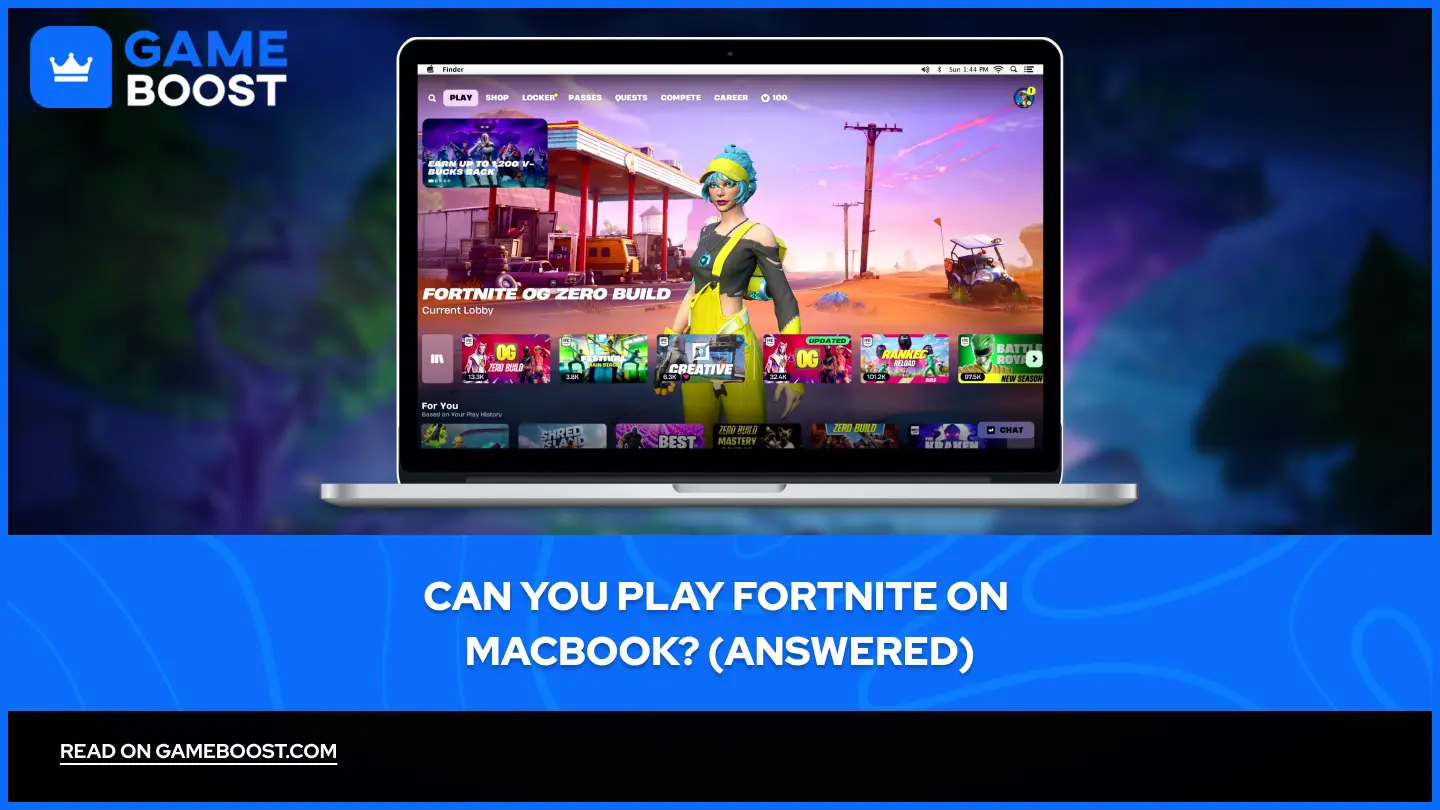
Can I Play Fortnite on a Mac?
This is a common question, especially for those who use Apple devices for work or creative pursuits and want to sneak in some gaming. Historically, yes, Fortnite was fully playable on Mac computers. However, due to a legal dispute between Epic Games and Apple, Fortnite Battle Royale (and its related modes) is no longer directly available on macOS through the Epic Games Launcher. This means you cannot download and play the current version of Fortnite on a Mac as you would on a Windows PC.
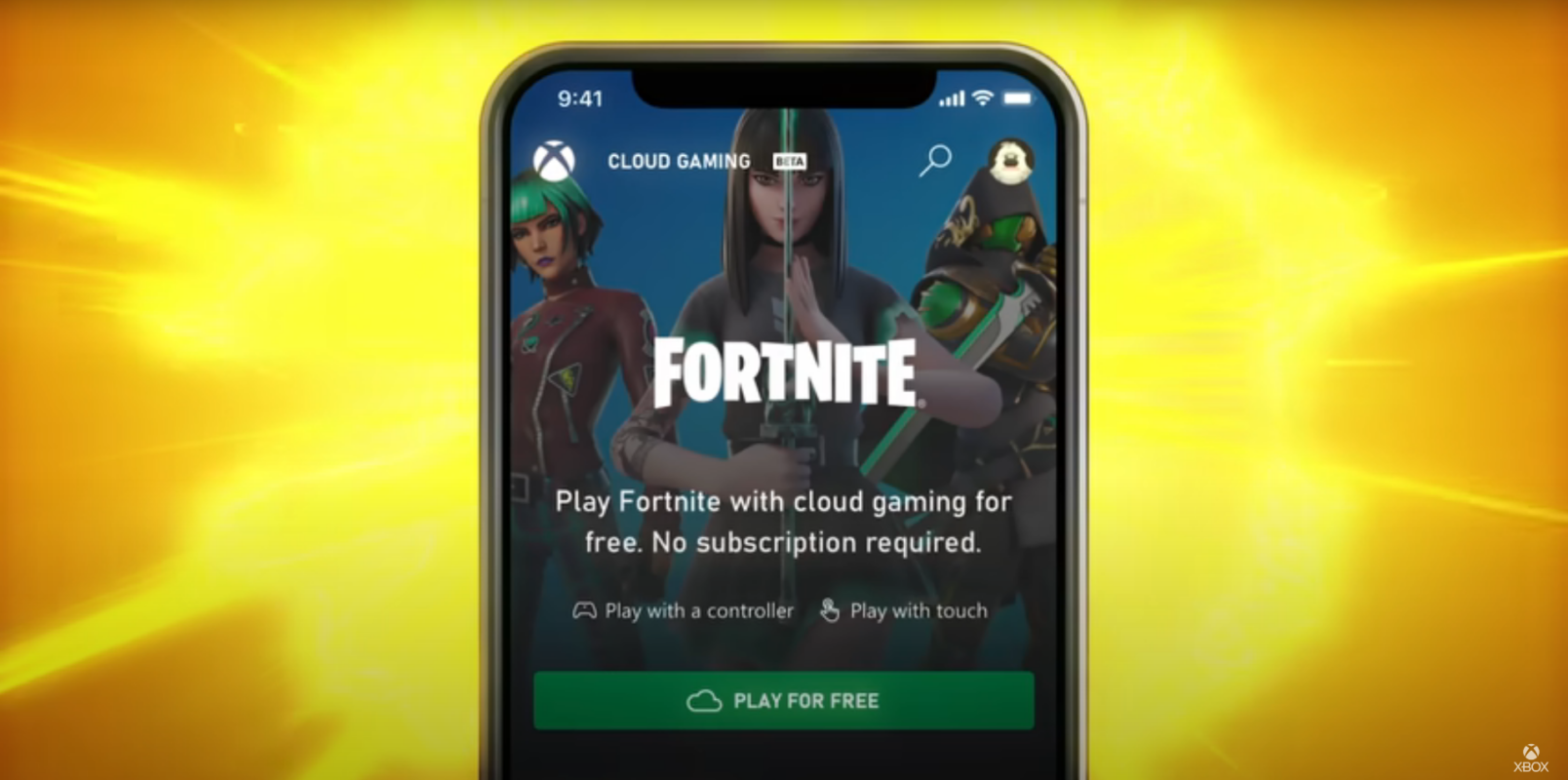
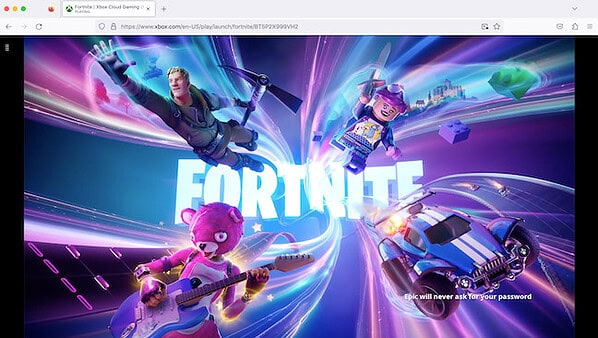
However, there's a workaround for dedicated Mac users! You can still play Fortnite on your Mac using cloud gaming services. Services like NVIDIA GeForce NOW or Xbox Cloud Gaming allow you to stream Fortnite to your Mac through your web browser, bypassing the need for a native installation. This requires a stable, high-speed internet connection but lets you enjoy the game with cross-play intact. It's a great option for those who want to play without investing in a Windows PC.
How Can I Optimize Fortnite Performance on My Computer?
Even with good hardware, tweaking your settings can make a huge difference, especially when you're looking to get the most out of your limited gaming time. Nobody wants to deal with stuttering or low frame rates when trying to clutch a win. Optimizing performance ensures you're getting smooth gameplay, which is crucial for competitive play and overall enjoyment. These tips are especially useful for the busy gamer who might not have the bleeding-edge hardware but still wants a great experience.
In-Game Settings for Performance:
- Window Mode: Always use Fullscreen for the best performance. It prioritizes the game's resources.
- Resolution: Match your monitor's native resolution. If you're struggling for frames, try lowering it slightly, but be aware of the visual impact.
- Frame Rate Limit: Set this to your monitor's refresh rate (e.g., 60 FPS, 144 FPS) or slightly higher if your PC can consistently maintain it. An uncapped frame rate can lead to instability.
- Quality Presets: Start with "Low" or "Medium" and adjust individual settings from there.
- 3D Resolution: Keep this at 100% if possible. Lowering it makes the game look blurry.
- View Distance: Set to "Medium" or "Far." "Epic" is taxing and not always necessary.
- Shadows: Set to "Off" or "Low." Shadows are very demanding on your GPU.
- Anti-Aliasing: "Off" or "Low" for performance.
- Textures: "Medium" or "High" depending on your VRAM. Lowering too much makes the game look poor.
- Effects: "Low" or "Medium."
- Post Processing: "Low" or "Off."
- Vsync: Turn off Vsync if you have a G-Sync/FreeSync monitor or prefer lower input lag. Only enable if you experience significant screen tearing and don't have adaptive sync.
- Motion Blur: Always turn this off. It can obscure enemies and add input lag.
- Rendering Mode: Try Performance Mode (Alpha). This mode, introduced to help lower-end PCs, prioritizes frame rate and offers a significant boost by simplifying graphics. It's currently one of the best ways to improve performance. DirectX 11 or 12 are alternatives for higher-end systems.
Outside the Game Optimization:
- Update Graphics Drivers: Always keep your GPU drivers (NVIDIA, AMD, Intel) up to date. New drivers often include performance optimizations for popular games like Fortnite.
- Close Background Applications: Before launching Fortnite, close any unnecessary programs, especially web browsers with many tabs, streaming services, or other demanding software.
- Game Mode (Windows 10/11): Ensure Windows Game Mode is enabled. It helps prioritize system resources for gaming.
- Power Settings: Set your Windows power plan to "High Performance" (or "Ultimate Performance" if available).
- Disk Cleanup: Regularly clean up temporary files and ensure your drive isn't too full. If Fortnite is on an HDD, consider moving it to an SSD for faster loading.
These tweaks can transform your gaming experience, letting you focus on the fun and social aspects of Fortnite rather than fighting technical issues. Many gamers find that investing a little time in optimization saves a lot of frustration.
Does Fortnite Support Cross-Play with Other Platforms on PC?
Yes, one of Fortnite's biggest strengths and a major reason for its enduring popularity, especially among social gamers, is its robust cross-play support. As of this month, Fortnite fully supports cross-play across all major platforms, including PC, PlayStation, Xbox, Nintendo Switch, and mobile devices (where available). This means you can team up with your friends regardless of what they're playing on, making it incredibly easy to gather your squad for some Battle Royale action after work or on the weekends.
The cross-play system is seamless: once you've added friends to your Epic Games Friends List, you can invite them to your party, and the game will automatically match you with other cross-platform groups. This feature is particularly valuable for the average gamer who wants to connect with their social circle without worrying about hardware limitations. It’s also a key driver in the current trend of social gaming, where connecting with friends online is as important as the game itself.
Is Fortnite Free to Play on PC?
Yes, absolutely! Fortnite Battle Royale, Zero Build, Creative, and the new LEGO Fortnite, Rocket Racing, and Fortnite Festival modes are all completely free to download and play on your computer. This accessibility is a huge draw for millions of players worldwide, including budget-conscious gamers who still want a high-quality, engaging experience without an upfront cost. You can install the game, jump into matches, and enjoy the core gameplay loop without spending a dime.
Epic Games generates revenue through optional in-game purchases. These purchases are primarily for cosmetic items like character outfits (skins), emotes, gliders, and pickaxes, which do not offer any competitive advantage. You can also purchase a "Battle Pass" each season, which unlocks exclusive cosmetic rewards as you play and level up. Many gamers find the Battle Pass offers excellent value for money, providing a steady stream of unlocks over a season. This free-to-play model allows you to try the game risk-free and only spend if you choose to personalize your experience or support the game's ongoing development.
What Controllers Can I Use to Play Fortnite on My Computer?
While many PC gamers swear by the precision of a mouse and keyboard, Fortnite offers excellent flexibility when it comes to input methods. You are absolutely not limited to just mouse and keyboard when playing on your computer. This is great news for gamers who might be transitioning from consoles, prefer the feel of a controller, or want to relax on the couch while still playing on their PC.
Popular Controller Options:
- Xbox Controllers: Xbox Wireless Controllers (Xbox One, Xbox Series X/S) are plug-and-play with Windows PCs. You can connect them via USB cable, the official Xbox Wireless Adapter, or Bluetooth (for newer models). They're widely supported and offer a familiar layout.
- PlayStation Controllers: DualShock 4 (PS4) and DualSense (PS5) controllers can also be used on PC. They connect via USB cable or Bluetooth. You might need third-party software like DS4Windows to get full functionality and remapping options, though many games, including Fortnite, have native support for them.
- Other PC Gamepads: Many third-party USB gamepads are compatible with Windows and will work with Fortnite. Look for controllers that emulate Xbox or PlayStation inputs for the best compatibility.
Fortnite automatically detects and switches input methods, so you can seamlessly transition between mouse/keyboard and controller, even mid-game. Just plug in or connect your preferred controller, and you're good to go. This flexibility ensures that you can play in the way that feels most comfortable and natural for you.
How Can I Balance Fortnite Gaming with My Job and Family Life?
This is a big one for the average adult gamer. We know gaming isn't just a hobby; it's a way to de-stress, connect with friends, and even build problem-solving skills. But fitting it in can be tough. The key is mindful integration, not exclusion. Remember, 87% of US gamers play regularly, often juggling similar responsibilities.
Here are some practical tips:
- Schedule Your Sessions: Just like you schedule meetings or family time, block out specific times for gaming. Even 30-60 minutes a few times a week can be enough for a few Fortnite matches. Communicate this with your family so everyone knows your "game time."
- Prioritize Social Play: If gaming is about connecting, prioritize playing with friends. Social gaming is a major trend, and Fortnite's cross-play makes it easy. Focus on quality time with your squad over grinding solo.
- Leverage Free-to-Play and Quick Sessions: Fortnite's Battle Royale matches are generally 15-20 minutes, making it easy to jump in and out. The free-to-play model means no pressure to "get your money's worth" if you skip a day.
- Set Boundaries: Use in-game timers or external apps to remind you when your session is ending. Avoid "just one more game" traps that can derail your sleep or other commitments.
- Communicate with Your Family: Explain why gaming is important to you – for relaxation, mental escape, or connecting with friends. When they understand its value, it's easier to find balance.
- Flexibility is Key: Some weeks you'll game more, some less. Don't beat yourself up if life gets in the way. It's about enjoyment, not rigid adherence.
By being intentional, you can enjoy Fortnite without letting it overwhelm your other responsibilities. It’s about making gaming a healthy, enjoyable part of a balanced life.
Are There Budget-Friendly Upgrades to Improve My Fortnite PC Experience?
For many gamers, a full PC overhaul isn't in the cards. You've got bills, family needs, and life happens. But that doesn't mean you can't significantly boost your Fortnite experience on a budget. Smart upgrades focus on components that offer the most bang for your buck.
Top Budget-Friendly Upgrades:
Add More RAM (Memory): If you're currently at 8 GB, jumping to 16 GB can dramatically improve performance, especially if you tend to have background apps running. RAM is often relatively inexpensive and easy to install. Check for compatible DDR4 or DDR5 sticks based on your motherboard.
Upgrade to an SSD (Solid State Drive): If you're still running Fortnite off an older Hard Disk Drive (HDD), upgrading to an SSD is perhaps the single most impactful upgrade for loading times and overall system responsiveness. Even a small 250GB or 500GB SATA SSD can be found affordably and used exclusively for your operating system and Fortnite. NVMe SSDs are even faster if your motherboard supports them.
Newer (Used) Graphics Card: This is where you might see the biggest performance jump in-game. While new GPUs can be pricey, the used market often has fantastic deals. Look for older generation cards (e.g., GTX 1070/1080, RTX 2060, or AMD RX 5700 XT) that still offer excellent performance for 1080p Fortnite at high frame rates. Always buy from reputable sellers and do your research on current used prices.
Improve Cooling: Sometimes, "poor performance" is just your CPU or GPU thermal throttling. A better CPU cooler (even an inexpensive tower air cooler) or ensuring good case airflow with additional fans can prevent your components from overheating and slowing down. This won't directly boost raw power but ensures you're getting consistent performance from what you have.
Optimize Software: This isn't a hardware upgrade, but it's free! Refer to the "How Can I Optimize Fortnite Performance" section. Keeping drivers updated, closing background apps, and using Performance Mode can squeeze extra frames out of your existing setup.
Before buying, always check your motherboard's compatibility, power supply unit (PSU) wattage, and case space. A little research can save you money and ensure a smooth upgrade process.
FAQ Section: Quick Answers for Fortnite PC Gamers
Can my old computer run Fortnite?
Fortnite has relatively low minimum requirements (Core i3-3225, 8GB RAM, Intel HD 4000). While an older PC might launch the game, you'll likely need to use Performance Mode and low settings for playable frame rates. Check the recommended specs for a truly enjoyable experience.
Is Fortnite better on PC or console?
This is subjective, but many competitive players prefer PC for the precision of mouse and keyboard controls, higher customizable graphics settings, and potentially higher frame rates. Consoles offer a more consistent, plug-and-play experience. Cross-play means you can play with friends regardless of platform.
How much storage space does Fortnite need on PC?
Fortnite requires approximately 20-30 GB of available storage space. This can fluctuate with major updates, so it's always good to have a bit of extra room. An SSD is highly recommended for faster loading times.
Do I need a strong internet connection to play Fortnite on PC?
Yes, Fortnite is an online-only game and requires a stable internet connection. A broadband connection (wired Ethernet is always best) with low latency (ping) is crucial for a smooth, lag-free experience. Cloud gaming services require even faster speeds.
Can I use my existing Epic Games account from console/mobile on PC?
Absolutely! Your Epic Games account is cross-platform. Simply download the Epic Games Launcher on your PC, log in with your existing account, and all your progress, V-Bucks, skins, and friends list will be available.
Are there any common issues playing Fortnite on PC?
Some common issues include crashing, low FPS, or launcher problems. Most can be resolved by updating graphics drivers, verifying game files (through the Epic Games Launcher), adjusting in-game settings (especially to Performance Mode), or ensuring your PC meets the system requirements. Epic Games support is also available for persistent issues.
What are the benefits of playing Fortnite on PC?
PC gaming often offers superior graphical fidelity, higher and more stable frame rates, precise mouse and keyboard aiming, and greater customization options for settings. It also integrates seamlessly with other PC applications like Discord for communication and allows for a wider range of hardware choices.
Conclusion
So, can you play Fortnite on your computer? The answer is a resounding yes, and as we've explored, getting started and even optimizing your experience is more accessible than you might think. For the busy gamer balancing life's demands, Fortnite offers a fantastic escape—a chance to relax, connect with friends across platforms, and sharpen your skills without breaking the bank or requiring a massive time commitment. By understanding the system requirements, following simple installation steps, and tweaking a few settings, you can ensure a smooth, enjoyable experience that fits right into your schedule. Whether you're chasing that Victory Royale or just chilling in Creative, your PC is a perfect platform for the fun.
What's your biggest gaming challenge when balancing it with life? Comment below!
Playing Fortnite on a computer is straightforward with the right setup and optimization. PC offers enhanced graphics and control over consoles. Cross-play with friends across all platforms is seamless. Free-to-play model makes it accessible to everyone. Performance can be tailored to various hardware specifications. Regular updates keep the game fresh and engaging. Troubleshooting tips are available for common issues.
35

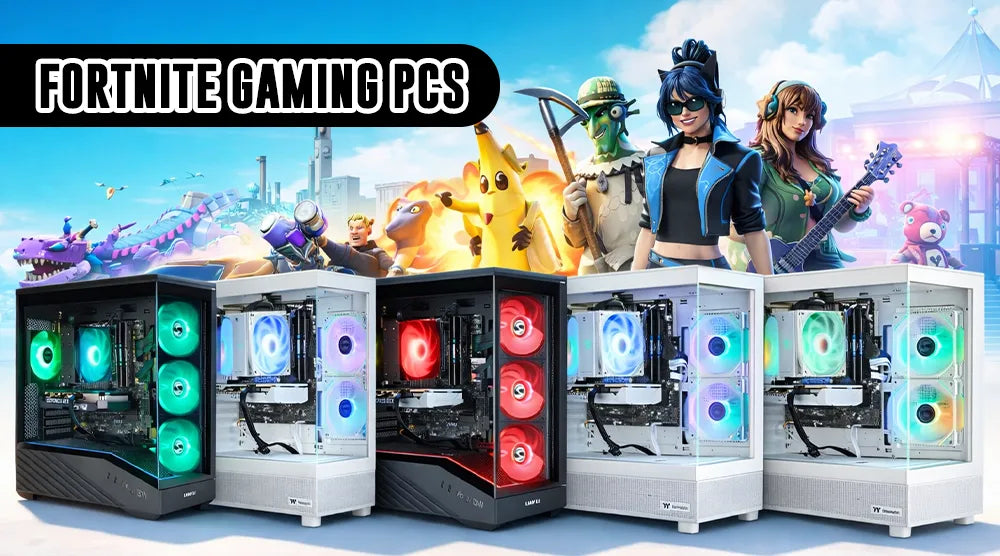
Fortnite Mac 2025 Fortnite On Mac Scaled . Can You Play Fortnite On A Gaming Laptop With Great Performance E12fe 1920 . Can You Play Fortnite On A Gaming Laptop With Great Performance Can I Play Fortnite On My Laptop 1024x576 . Play Fortnite On Mac Step By Step Guide IGeeksBlog How To Play Fortnite On Mac . Outletdast Blog How To Install Fortnite On Pc 950x570


Laptops You Can Play Fortnite On At Nicholas Warrior Blog . Fortnite Download All The Ways To Play Fortnite Ecosystem W Fn 1920x1080 . Can You Play Fortnite On MacBook Answered B85c35f0 9424 4a9e A7bf Webp.webp. What Devices Can You Play Fortnite On 2026 What Devices Can You Play Fortnite On Hero . How To Play Fortnite On Xbox Cloud Gaming Guide 2026 Xbox Cloud Gaming

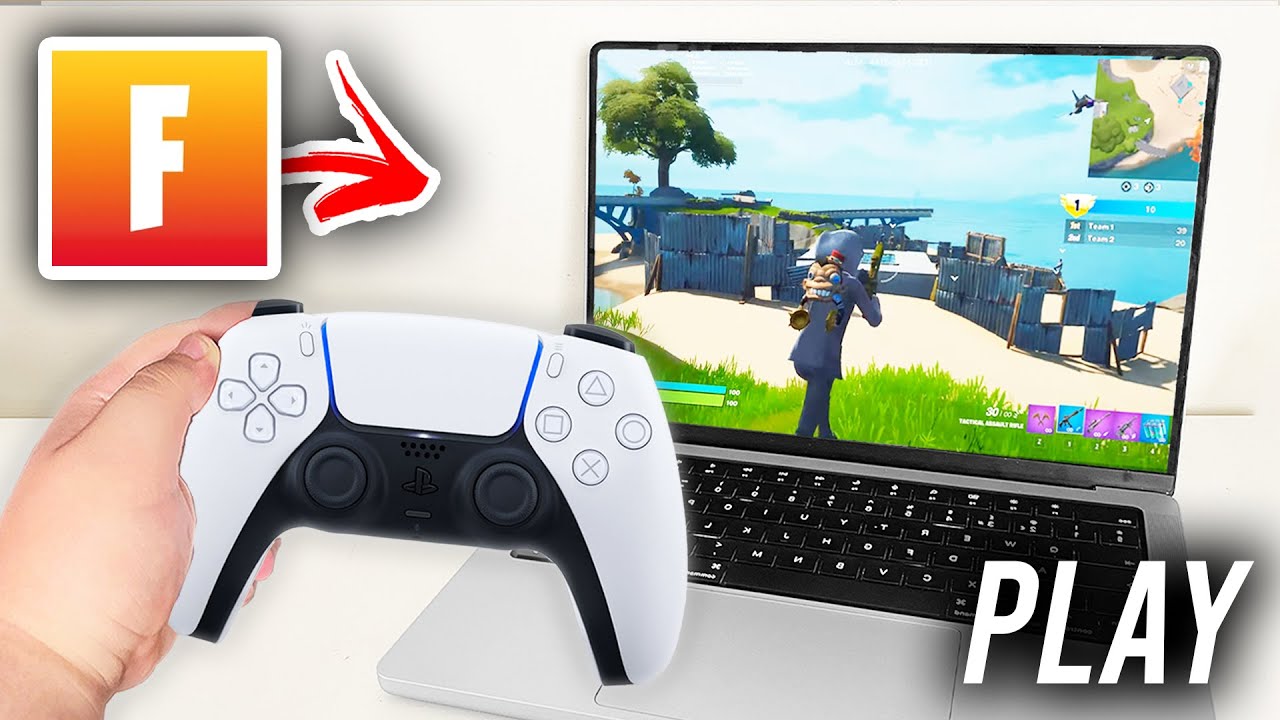

Can You Play Fortnite On Mac In 2026 Can You Play Fortnite On Mac . How To Play Fortnite In A Browser 2025 Best Cloud ChatGPT Image Aug 21 2025 04 16 02 PM . Best Fortnite Gaming PCs Play Fast Smooth And Competitive Fortnite System Shot . Can You Play Fortnite On Pc With A Controller At Emma Sparks Blog . How To Play Fortnite On PC With PS4 Controller 2026 Step By Step


Can You Play Fortnite On PS3 In 2026 How To Play Fortnite On PS4 And PS5 300x169 . What Kind Of Laptop Do I Need To Play Fortnite At Kaitlyn Devine Blog . Can You Play Fortnite On Mac Full Apple Guide Image 14.webp. Can You Play Fortnite On The Xbox 360 Or PS3 EarlyGame . Fortnite PC 2026 Is Your PC Battle Ready Techwhiz Inc Top 5 Fortnite Gaming PCs To Dominate Every Match In 2026 E6b2c541 C2a4 45e9 Bf0f

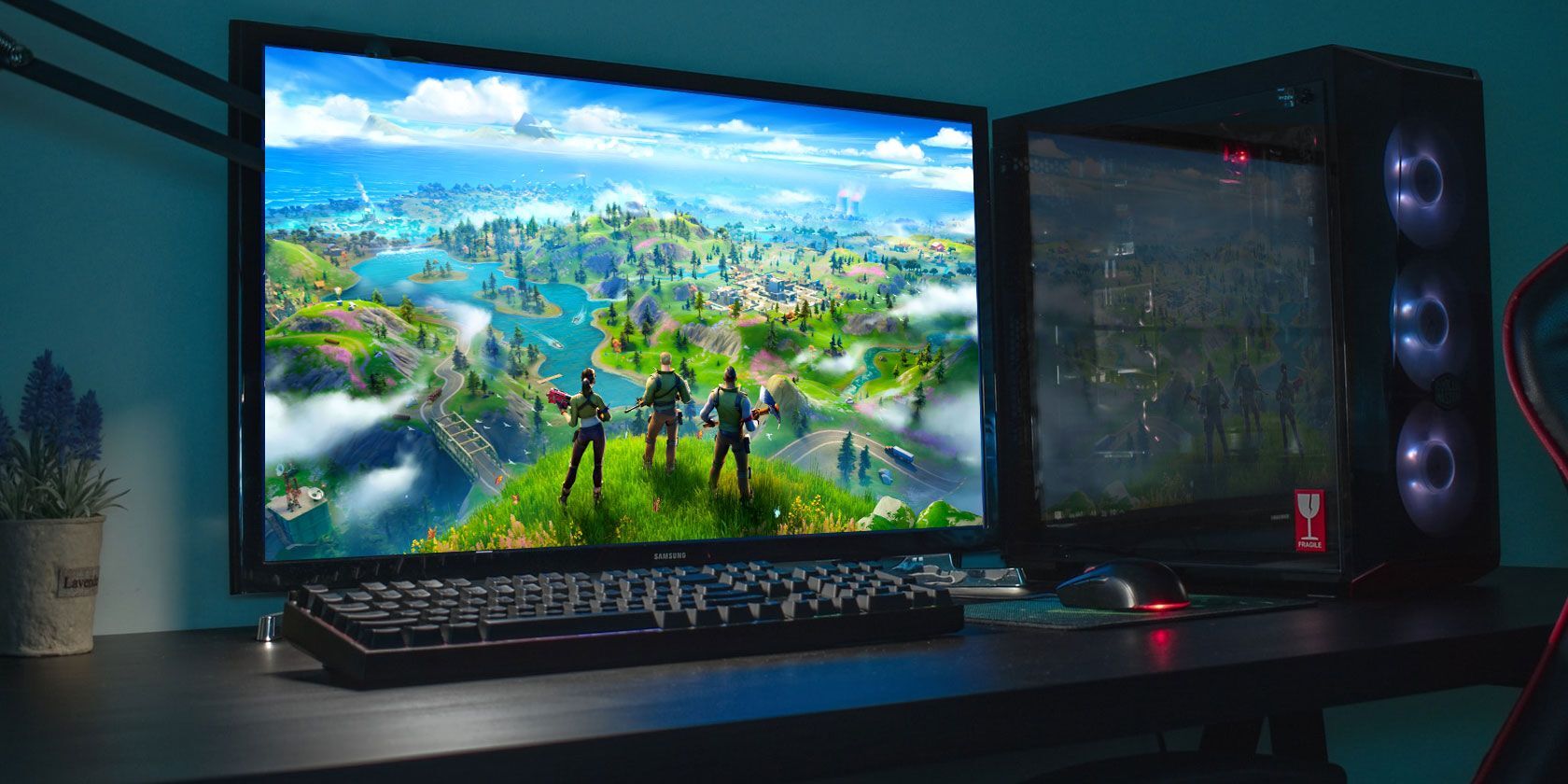
Can You Play Fortnite On Mac In 2026 Fortnite On Mac . Fortnite Minimum Recommended System EarlyGame Fortnite Gaming Pc . Can You Play Fortnite On MacBook Answered F7012ec5 9ac9 4ad1 Acb8. Best Fortnite Gaming Laptop Can You Play Fortnite On A Laptop Can You Play Fortnite On A Laptop Best Gaming Laptop For Fortnite . Can You Play Fortnite On Steam Deck Step By Step Guide Blog Fortnite Acc.webp
Can You Play Fortnite On PC How To Play Fortnite On PC How To Play Fortnite On Pc Thumbnail . Fortnite Reveals FNCS 2026 Plans Here S What You Can Expect Fortnite Ios 968x544 . Can You Play Fortnite On Steam Deck Step By Step Guide 4342160d 9725 429f 9cd9 Webp.webp. Fortnite In 2026 Player Count Modes And Revenue Fortnite . Fortnite Series 2026


How To Play Fortnite On Mac A Complete Guide Play Fortnite On Mac Cover 600x338 . What Are The Minimum And Recommended For Fortnite On PC . Can You Play Fortnite On A 200 Laptop YouTube . Can You Play Fortnite On Nintendo Switch 4d5d0c0f A744 49b8 8659. Xbox Fortnite Remix Key Art 1920x1080 1920x1080