Welcome gamers looking to socialize more in Roblox. This comprehensive guide will walk you through the process of enabling voice chat on Roblox in 2026, ensuring you can connect with friends and fellow players seamlessly. We understand that social interaction is a key aspect of modern gaming, especially for adult players who juggle work and family. Roblox's voice chat, known as Spatial Voice, offers an immersive way to communicate, making your gaming sessions more engaging and dynamic. This resource addresses common setup issues, age verification steps, and privacy concerns, providing practical solutions for optimizing your social play. It is designed for busy adults who value clear, concise information to get them back into the game faster. Discover the benefits of real-time communication, learn about the safety features, and troubleshoot any potential problems with this up-to-date tutorial. Enhance your Roblox experience today with easy-to-follow instructions tailored for the 2026 gaming landscape. Get ready to chat, collaborate, and conquer new virtual worlds.
Q1: What is the first step to get voice chat on Roblox?
A1: The absolute first step to get voice chat on Roblox is to ensure your account is verified as 13 years or older. This involves submitting a valid government-issued photo ID through the Roblox website settings for age verification, typically completed using a mobile device for scanning.
Q2: How do I turn on the microphone in Roblox for chatting?
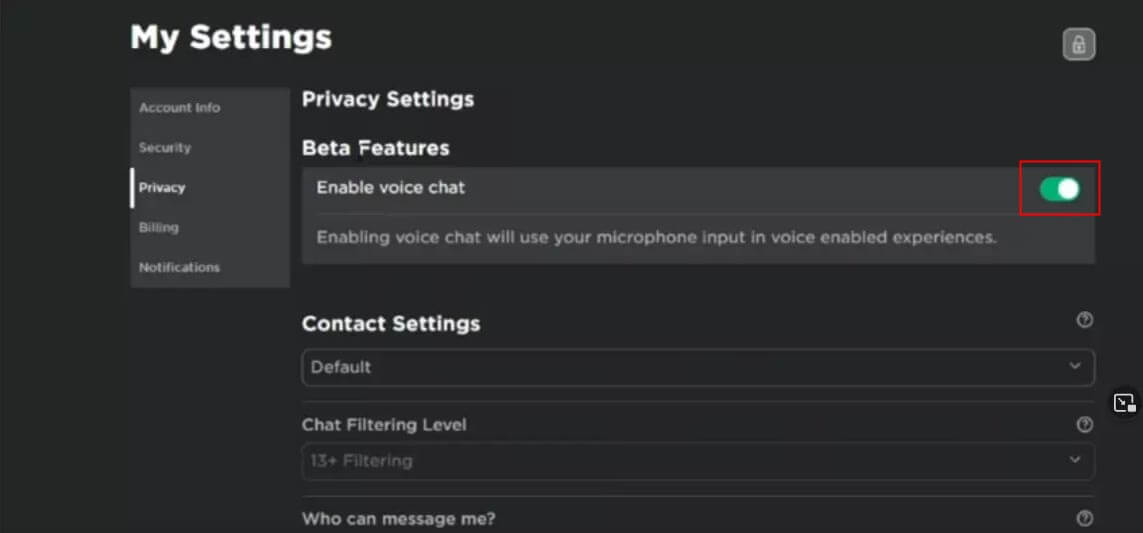
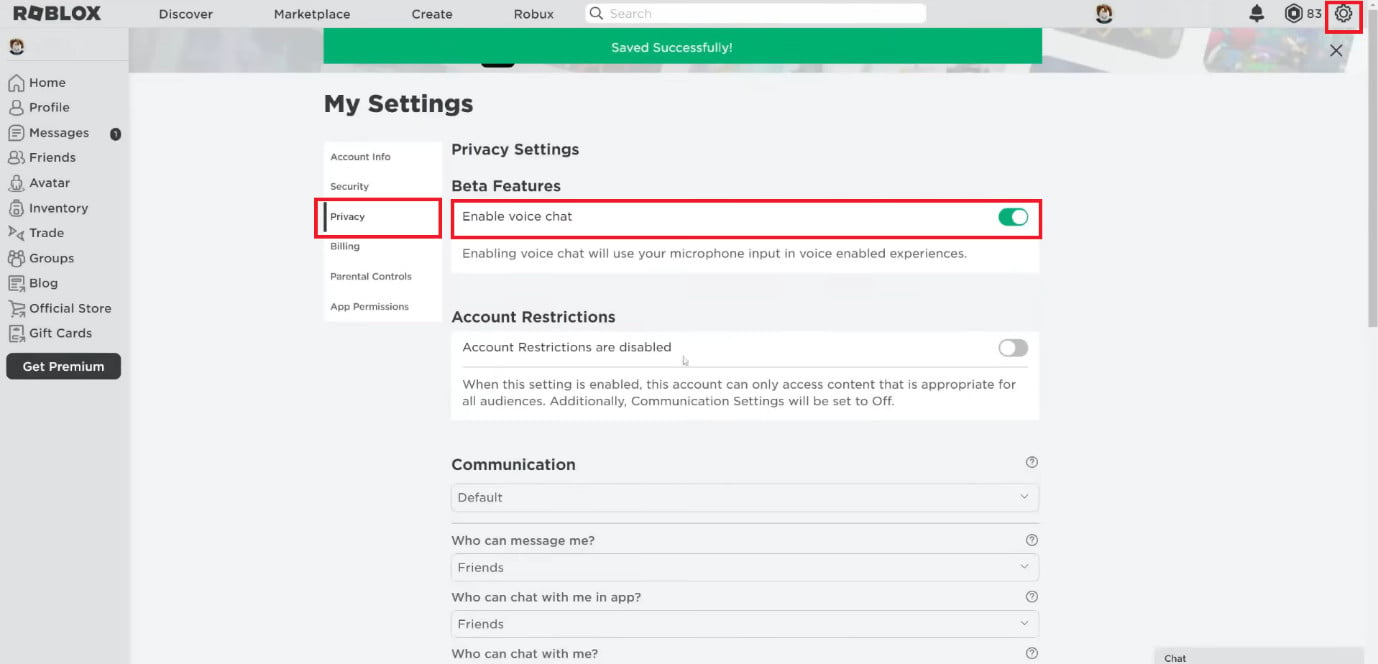
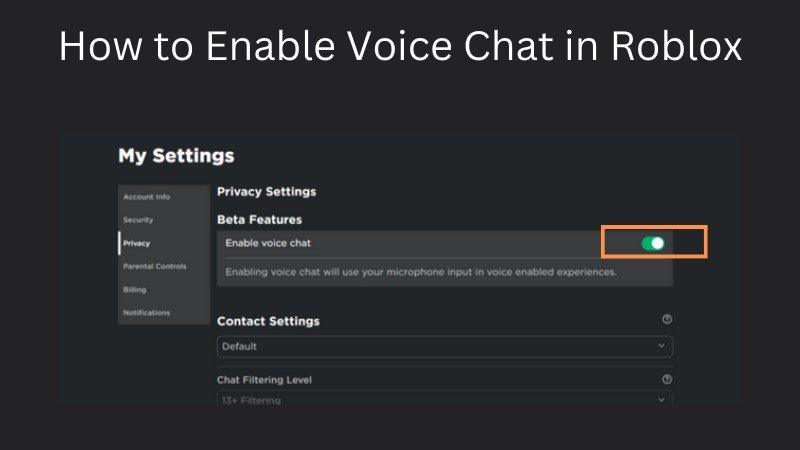
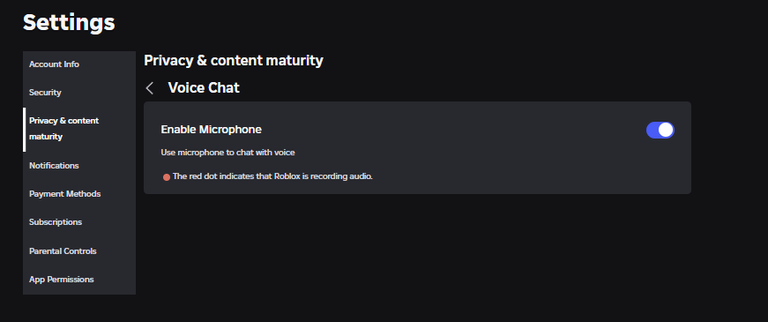
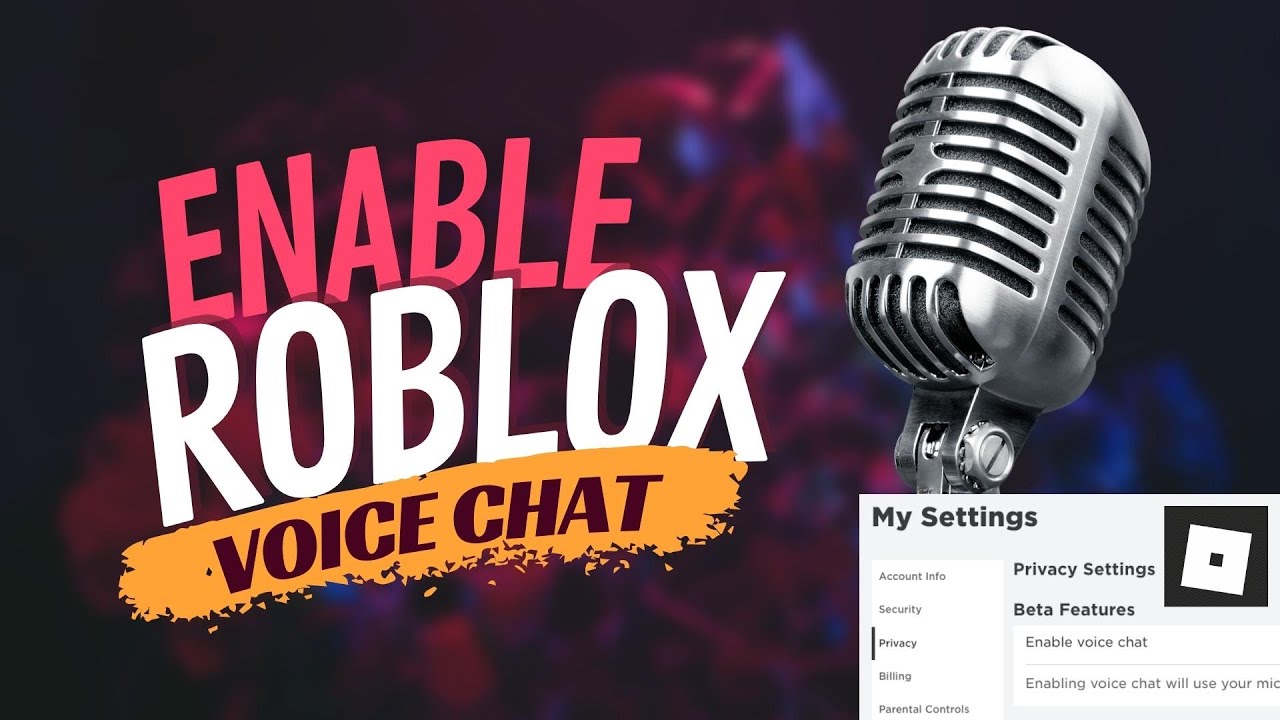
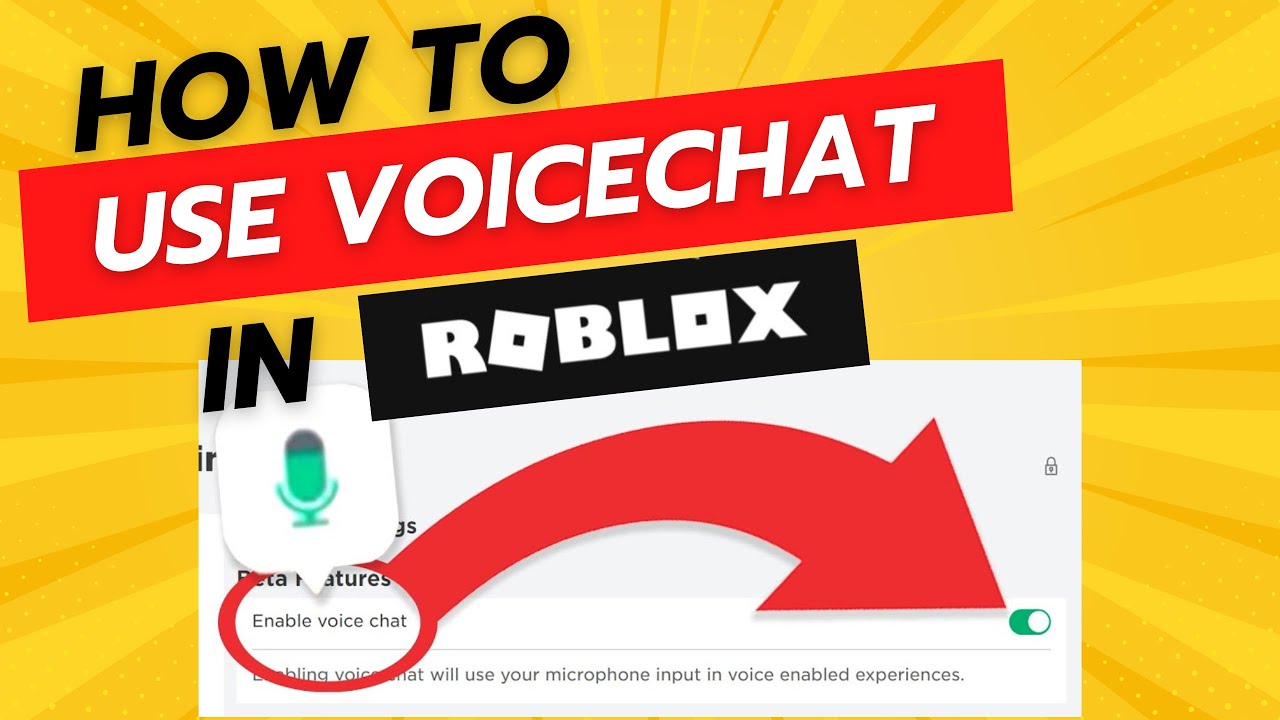
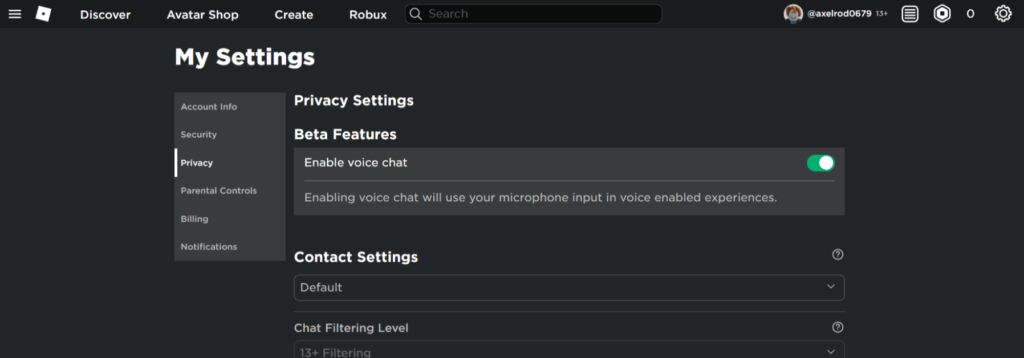
A2: After successfully verifying your age, you can turn on the microphone for chatting by navigating to your Roblox "Privacy Settings" on the website. There, you'll find a toggle labeled "Enable Voice Chat" or "Enable Spatial Voice" that you need to switch to the "On" position to activate the feature.
Q3: Does Roblox voice chat work on all games?
A3: No, Roblox voice chat (Spatial Voice) does not work on all games. Developers must specifically enable and integrate the feature into their experiences. Look for games with a "Spatial Voice" tag or icon on their game page, or check the game's description to confirm support.
Q4: What IDs can I use to verify my age for Roblox voice chat?
A4: For age verification to enable Roblox voice chat, you can typically use any valid government-issued photo ID such as a driver's license, passport, or state identification card. The ID must clearly display your date of birth and be current, not expired.
Q5: Can parents control Roblox voice chat for their kids?
A5: While Roblox voice chat is age-gated to 13+, parents can control their child's access by ensuring the child's account cannot pass age verification or by directly disabling the "Enable Voice Chat" toggle in their child's privacy settings if it was previously enabled by someone else. Open communication about online safety is also key.
Q6: Why is my mic not working in Roblox voice chat even though it's on?
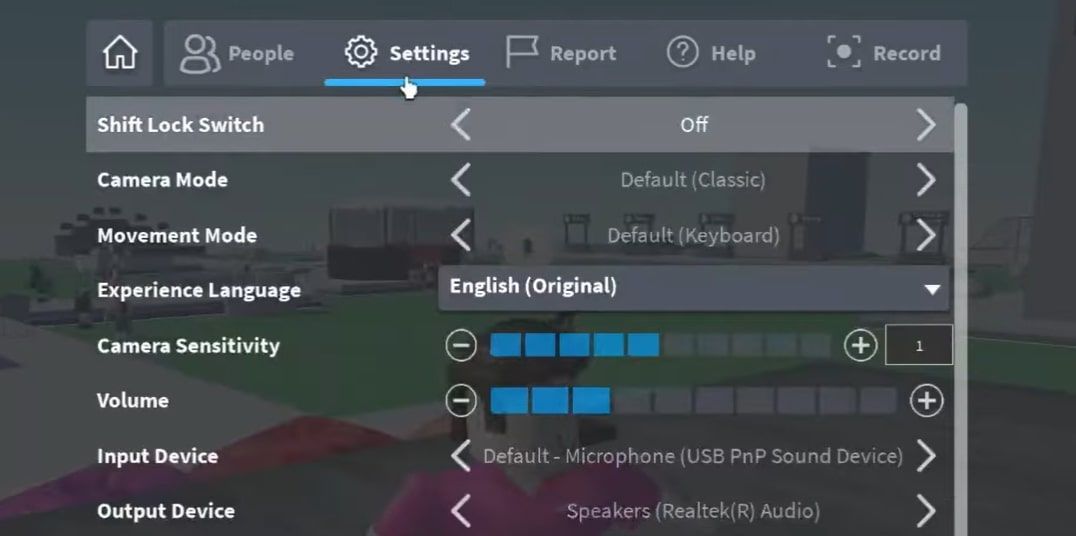
A6: If your mic isn't working despite voice chat being enabled, first check your device's operating system privacy settings to ensure Roblox has microphone access. Also, verify that the correct microphone is selected as your default input device in your system's sound settings, and check in-game volume or mute controls.
Q7: Is Roblox voice chat free to use?
A7: Yes, Roblox voice chat, known as Spatial Voice, is completely free to use once you have met the age verification requirements and enabled the feature in your account settings. There are no additional costs or Robux required to utilize this communication feature.
Welcome, fellow gamers! In the ever-evolving landscape of online gaming, connecting with friends and fellow players in real-time is more crucial and enjoyable than ever. For many of us balancing careers, families, and life's demands, gaming isn't just a pastime; it's a valuable outlet for relaxation, skill-building, and social connection. Roblox, a platform that boasts an incredible 87% of US gamers regularly engaging with it, particularly shines as a hub for creative and social play. With an average gamer dedicating over 10 hours a week to their passion, maximizing those precious gaming moments with seamless communication is a top priority.
You're likely here because you want to know how do you enable voice chat on Roblox to truly dive into the immersive, social experiences it offers. Whether you are collaborating on a new build, coordinating strategies in an adventure game, or simply chatting with friends in a digital hangout, voice chat transforms the Roblox experience. In 2026, with mobile gaming dominating much of the playtime and cross-platform play being the norm, having reliable in-game communication is no longer a luxury, but an expectation. This guide is crafted specifically for you, the busy adult gamer, providing clear, actionable steps and troubleshooting tips to get your Roblox Spatial Voice Chat up and running quickly and safely.
We'll cut through the jargon and provide you with everything you need to know, from initial setup and age verification to privacy settings and common fixes. No hype, just practical, up-to-date information to enhance your valuable gaming time. Let's get your mic ready and jump into a more connected Roblox universe!
What is Roblox Spatial Voice Chat and Why Should I Use It?
Roblox Spatial Voice Chat, often just called "voice chat," is a feature that allows players to communicate verbally with each other in supported experiences. Unlike traditional voice chat that connects everyone in a group, Spatial Voice operates based on proximity. This means that as you move closer to another player's avatar in a game, their voice becomes louder and clearer, creating a truly immersive and realistic social experience. For adult gamers, this feature significantly enhances social interaction, making team-based games more collaborative and casual hangouts more engaging. It also streamlines communication, eliminating the need to type messages, which can be slow and distracting, especially on mobile devices where many US gamers spend their time.
How Do You Enable Voice Chat on Roblox: The Basic Steps?
Enabling voice chat on Roblox is a straightforward process, primarily revolving around age verification and privacy settings. Here's a step-by-step breakdown:
Ensure You Meet the Age Requirement: Roblox Voice Chat is currently available for users aged 13 and older. To access it, you must first verify your age on the platform.
Verify Your Age: Log in to your Roblox account on a web browser. Navigate to "Account Info" under "My Settings." Look for the "Verify My Age" option. You will need a valid government-issued ID (like a driver's license or passport) and a mobile device with a camera. Follow the on-screen prompts to scan your ID and take a selfie. This process is secure and typically takes only a few minutes.
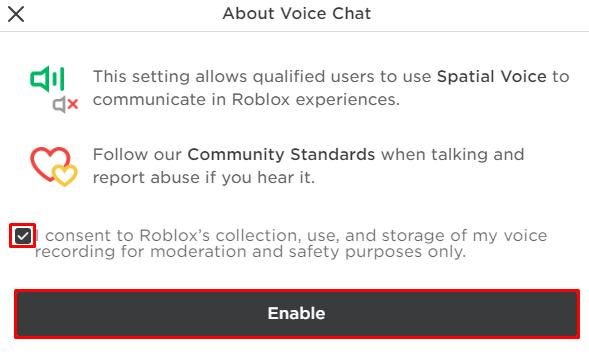
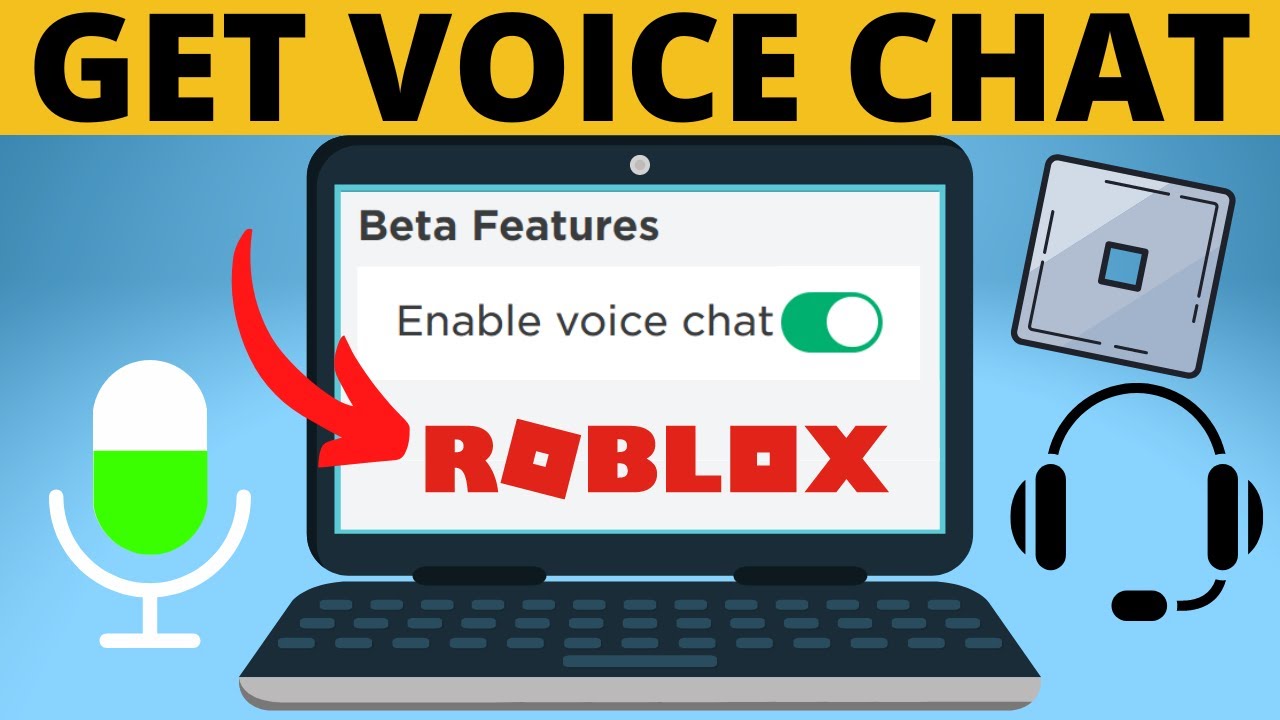
Enable Spatial Voice: Once your age is successfully verified, return to your "Privacy Settings" within the "Settings" menu. You should now see a toggle switch labeled "Enable Voice Chat" or "Enable Spatial Voice." Toggle this switch to the "On" position and accept any terms and conditions.
Join a Supported Experience: Spatial Voice Chat only works in games that have explicitly integrated the feature. Look for games marked with the "Spatial Voice" icon or check the game's description for compatibility.
Check Your Microphone: Before playing, ensure your microphone is properly connected and configured on your device (PC, mobile, console). Roblox will typically detect your default microphone.
What are the Age Verification Requirements for Roblox Voice Chat?
Roblox is committed to creating a safe environment, and age verification is a cornerstone of this. To enable voice chat, you must be 13 years or older. The verification process involves using a government-issued photo ID. This robust system helps protect minors and ensures a more mature environment for voice interactions. The verification typically requires a valid government-issued photo ID (driver's license, passport, or national/state ID) and a mobile device with a camera to scan your ID and take a live selfie. This process is handled by a trusted third-party service, ensuring your personal data is managed securely. While it might seem like an extra step, it's essential for maintaining a positive and safe community, especially as social gaming trends continue to rise.
Is Roblox Voice Chat Safe for Adult Gamers and Families?
Roblox has implemented multiple layers of safety features to make voice chat a secure experience, not just for younger players but also for adult gamers seeking a respectful environment. These measures include Age Gating (13+ only), the proximity-based Spatial Voice design which reduces overwhelming interactions, and robust Mute and Block Features for individual players. An in-game Reporting System allows you to flag inappropriate behavior, which Roblox's moderation team investigates. Furthermore, strict Community Guidelines prohibit harassment, hate speech, and inappropriate content. For adult gamers, these features provide peace of mind, allowing you to focus on the fun without constant worry about disruptive elements. Open communication with family members about online safety remains important.
Troubleshooting Common Roblox Voice Chat Issues?
Even with everything set up correctly, you might encounter occasional glitches. Here are common issues and how to troubleshoot them, perfect for the busy gamer who needs quick solutions:
1. "Voice Chat Not Appearing/Toggle Missing": Check your account settings to ensure age verification was successful. Make sure you are checking settings on the Roblox website in a browser, not just through the app. Sometimes, a simple log out and log back in can refresh settings.
2. "Can't Hear Others / Others Can't Hear Me": Ensure Roblox has permission to access your microphone in your device's operating system settings. Check your system's sound settings to confirm the correct microphone is selected as the default input device. Also, verify in-game settings for any volume sliders or mute buttons, and confirm the specific Roblox experience supports Spatial Voice. A stable internet connection is also vital.
3. "Voice Chat Echoes or Has Poor Quality": Always use a headset to prevent echoes. Position your microphone correctly, avoiding being too close or too far from your mouth. Try to game in a quiet environment or use noise-canceling headphones. Adjust your microphone's input volume in your system settings; too high can distort, too low makes you faint. These quick checks often resolve most voice chat problems, getting you back to socializing without delay.
How to Manage Privacy and Mute Settings in Roblox Voice Chat?
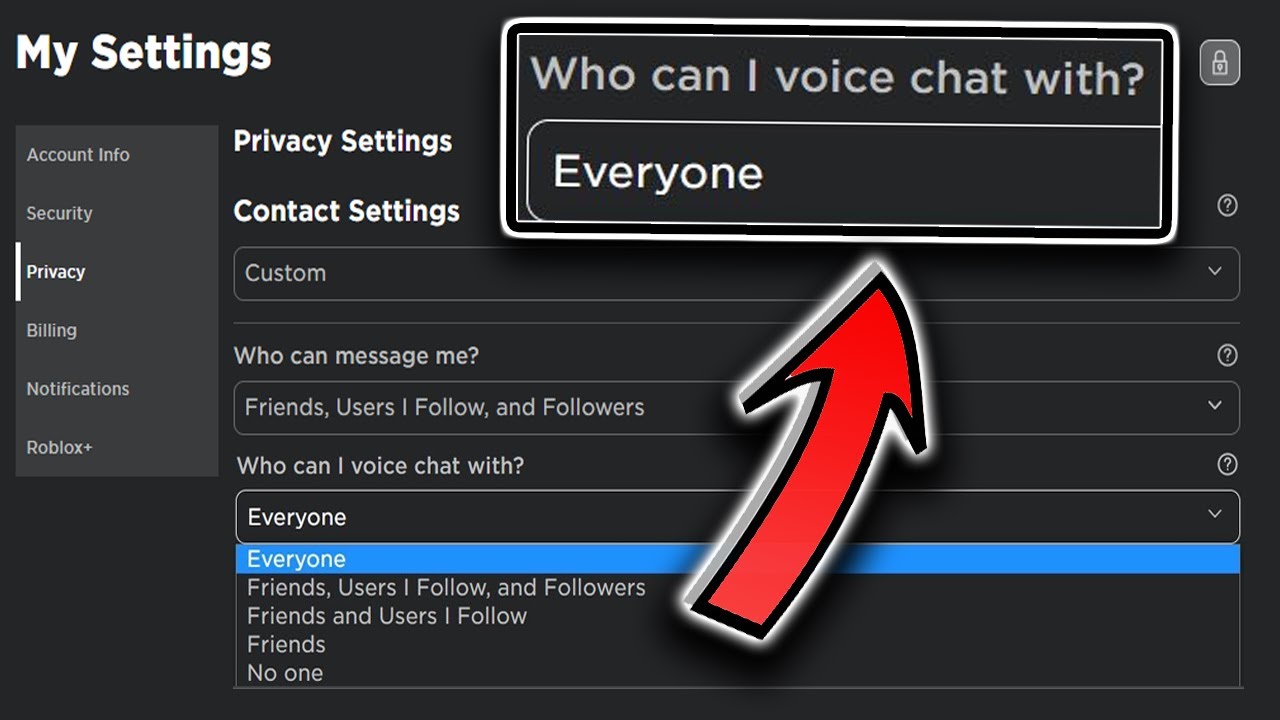
Maintaining control over your privacy and interactions is crucial for an enjoyable gaming experience. Roblox provides robust tools to manage your voice chat settings. The Global Voice Chat Toggle in your Roblox "Privacy Settings" allows you to completely disable the feature at any time. For individual interactions, you can easily Mute individual players in-game by clicking their avatar or name; this stops you from hearing them. For more persistent issues, you can Block a player from their profile, which prevents all interaction. Crucially, Roblox offers an in-game Reporting System to address inappropriate conduct, helping maintain a safe and positive environment for everyone. Regularly reviewing your privacy settings ensures your Roblox experience aligns with your preferences for social interaction and safety.
What Games Support Spatial Voice on Roblox?
The number of experiences supporting Roblox Spatial Voice Chat is constantly growing as developers opt-in. While there isn't a single comprehensive list, you can identify supported games in a few ways: Look for a "Spatial Voice" tag or icon on the game's thumbnail or description page. Developers typically mention support in the game description. Once in a game, an in-game microphone indicator next to your avatar name often confirms voice chat is active. Popular social hubs, role-playing games, and adventure experiences are often among the first to adopt Spatial Voice. Community recommendations on platforms like Discord are also great sources for finding voice-enabled games. Trends in 2026 show a significant increase in social and cozy games adopting voice chat to enhance player interaction.
Are there alternatives to Roblox's native voice chat for group play?
While Roblox's Spatial Voice Chat is fantastic for in-game immersion, many adult gamers often use external voice communication platforms for broader group play. Discord is the most popular alternative, offering robust voice and text chat features for private servers, excellent for coordinating sessions across different titles, including Roblox. Other options include more traditional VoIP solutions like TeamSpeak/Mumble, favored by some competitive groups for low latency. If playing Roblox on a console like Xbox, the built-in console party chat system provides reliable communication with console friends. For small, impromptu groups, even mobile voice call apps can serve as a quick solution. The choice depends on whether you prioritize integrated, proximity-based chat (Spatial Voice) or broader, cross-game group communication.
Tips for a Better Roblox Voice Chat Experience?
To truly get the most out of your Roblox voice chat, consider these practical tips, designed for gamers who value smooth and engaging interactions:
Invest in a Decent Headset: A good quality gaming headset with a clear microphone minimizes background noise and ensures crisp audio.
Optimize Your Environment: Play in a relatively quiet space or utilize noise-canceling features if available.
Master Muting: Know when to mute yourself to avoid broadcasting private conversations, and don't hesitate to mute disruptive players.
Be Mindful of Background Noise: Avoid loud music or conversations near your microphone, as it distracts others.
Adjust Your Mic Sensitivity: Set your microphone sensitivity so it picks up your voice clearly without capturing excessive background sounds.
Report Bad Actors: Use the reporting tools to help maintain a positive and clean community.
Communicate Clearly: Speak clearly and at a moderate pace, making the experience better for all players.
By following these tips, you'll not only enhance your own voice chat experience but also contribute to a more positive and engaging environment for the entire Roblox community.
What's Next for Roblox Voice Chat in 2026 and Beyond?
Roblox is constantly innovating, and Spatial Voice Chat is no exception. In 2026, we can expect continued refinement and expansion of this feature, driven by the platform's vision for a fully immersive metaverse. Anticipate Broader Adoption across more experiences, as it becomes a standard expectation for social interaction. Look for Enhanced Audio Fidelity and Features, potentially including voice filters, sound effects, or even AI-powered language translation to bridge communication gaps. Deeper integration with avatar customization and more granular, AI-powered moderation tools are also likely. Roblox will continue striving for Cross-Platform Consistency, ensuring seamless performance across all devices, from PCs to mobile phones, reflecting current gaming trends. These developments point towards an even more vibrant, connected, and immersive Roblox experience, reinforcing its position as a leading platform for social gaming and creativity.
***
FAQ Section
How old do I need to be for Roblox voice chat?
You must be 13 years or older and have successfully completed age verification with a valid government-issued ID to enable and use Roblox Spatial Voice Chat.
Can I use Roblox voice chat on my phone?
Yes, once enabled and your age is verified, Roblox voice chat works seamlessly on mobile devices (iOS and Android) within supported games, just like on PC.
What if I don't have a government ID for age verification?
Unfortunately, a valid government-issued photo ID is currently a mandatory requirement for Roblox's age verification process to enable voice chat. There are no alternative methods at this time.
How do I know if a Roblox game supports Spatial Voice?
Look for the "Spatial Voice" tag on the game's page or within its description. Many games will also show a microphone icon in-game if voice chat is active.
Can I turn off voice chat after enabling it?
Yes, you can toggle off voice chat at any time by going to your Roblox "Privacy Settings" and switching the "Enable Voice Chat" option to the "Off" position.
Why is my Roblox voice chat not working even after enabling it?
Common issues include incorrect microphone permissions on your device, an improperly selected default microphone, in-game volume settings, or the specific game not supporting Spatial Voice. Always check your system's audio settings and game compatibility first.
***
In conclusion, enabling voice chat on Roblox is a straightforward process that significantly elevates your gaming experience, especially for adult gamers seeking richer social interactions and collaboration. By following the steps for age verification and understanding the privacy controls, you can confidently dive into the immersive world of Spatial Voice. Remember, balancing gaming with life means optimizing your fun, and seamless communication is a huge part of that. With Roblox continuously evolving, staying connected through voice chat ensures you're always part of the action and the growing community.
What's your biggest gaming challenge in balancing play with life? Comment below!
Easy step-by-step guide for enabling Roblox Spatial Voice Chat. Understand age verification requirements for activation. Learn to manage privacy and mute settings effectively. Discover common troubleshooting tips for voice chat issues. Enhance social gaming and collaboration with friends. Stay current with 2026 Roblox features and safety protocols.
35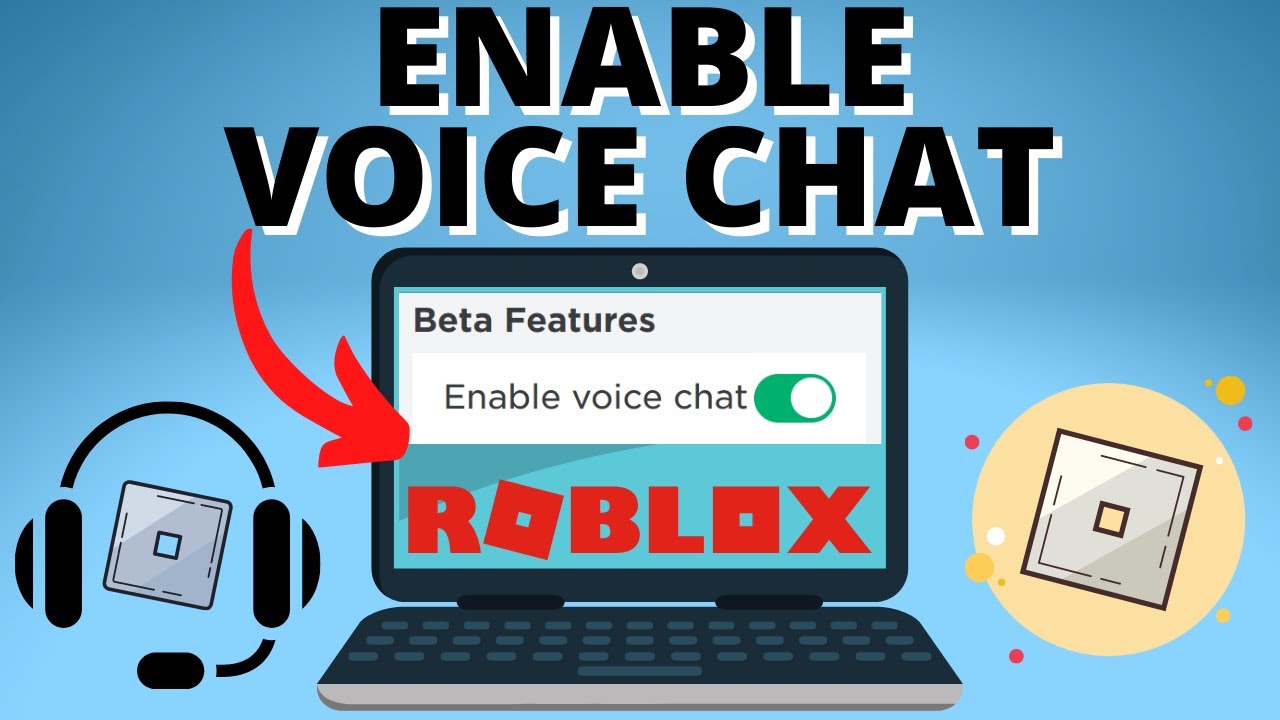



How To Enable Roblox Voice Chat Qosaboard . Roblox On Xbox Can You Chat With Your Voice . How To Get Voice Chat On Roblox 2026 Enable VC Without ID Izoate How To Enable Voice Chat In Roblox 2026.webp. ROBLOX How To Enable Use Voice Chat Roblox Den Image 14957c6e8b . Turn On Voice Chat In Roblox How To USE Voice Chat In Roblox IPad

How To Message On Roblox 2026 A Quick Guide . Roblox Voice Chat Is In SETTINGS YouTube . Checkshost Blog Roblox Enable Voice Chat . How To Enable Voice Chat In Roblox TechCult Turn The Toggle On For Enable Voice Chat . Chatting On Roblox Console Edition Enable Voice Chat Roblox Steps


How To Enable Voice Chat In Roblox Fixes Tips Enable Voice Chat In Roblox . How To Enable Voice Chat In Roblox The Ultimate Guide For Gamers The AD 4nXf. How To Enable And Use Voice Chat Option On Roblox Quick Tutorial 2023 . How To Get Voice Chat In Roblox . How To Enable Voice Chat In Roblox RoCodes Gg RoCodes 1656 How To Enable Voice Chat In Roblox




Roblox On Xbox Can You Chat With Your Voice . How To Get Enable Voice Chat In Roblox 2024 YouTube . How To Turn On Voice Chat Roblox H Ng D N C I T V S D Ng Chi Ti T . Why Won T My Roblox Voice Chat Work Simple Fixes . How To Get Voice Chat On Roblox 2026 YouTube

Silence The Chat Disabling Roblox Voice . How To Get Voice Chat In Roblox . Roblox On Xbox Can You Chat With Your Voice . Can 17 Year Olds Use Voice Chat On Roblox Today PC Mobile How To Get Voice Chat On Roblox . Can 17 Year Olds Use Voice Chat On Roblox Today Foto Voice Chat Roblox

Silence The Chat Disabling Roblox Voice 11 Turn The Volume Up By Clicking The Plus Icon Next To It . How To Enable Voice Chat On Roblox Turn On Roblox Voice Chat YouTube . How To Get Voice Chat On Roblox Everything You Need To Know 12c8bcfd 4c80 4a84 A23f Webp.webp. Roblox On Xbox Can You Chat With Your Voice . HOW To ENABLE VOICE CHAT On ROBLOX In 2026 How To Get Voice Chat Img




Roblox On Xbox Can You Chat With Your Voice . Roblox On Xbox Can You Chat With Your Voice . How To Enable Roblox Voice Chat Feature 2022 Tutorial Blog Enable Roblox Voice Chat Step 4 1024x358 . How To Enable Voice Chat In Roblox YouTube . Why Won T My Roblox Voice Chat Work Simple Fixes